










Help Information for Creating HTML Files
To insert the code for your Audio Visual or BookIt into your email signature you need to create an HTML file.
Follow the instructions below to create your HTML file. If you are still unsure, please contact your Web master.
Create HTML File
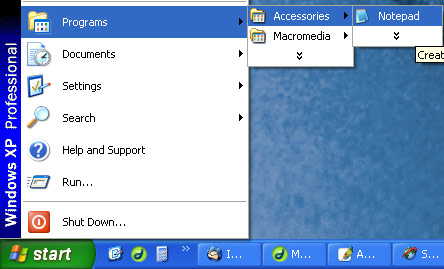
Go to:
- Start
- Programs
- Accessories
- Notepad
Go to the email we have sent you with your unique code in it.
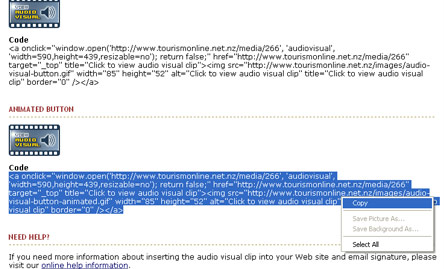
Choose the version of your audio visual clip you want to use, and highlight all the text under the word "Code" for that version. Right-click on the highlighted code, and click "Copy".
Go to your open notepad document. Right-click and click "Paste".
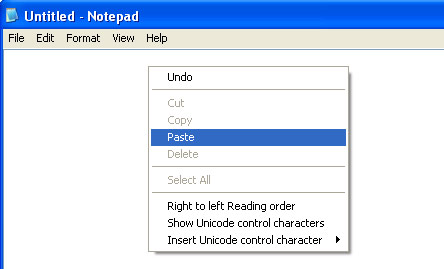
Your code should appear in your Notepad document. You now need to save your document as an ".html" file.
Go to:
- File
- Save As
- Select where you want it be saved
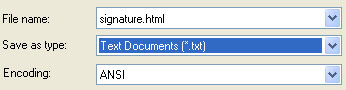
Name your file in "File Name". At the end of your filename type ".html". It should look like this:
Click "Save" and follow the instructions given here to insert your file into your signature.